
To help guide schools in how to deal with students with gender dysphoria and the confidential nature of that issue regarding legal names and birth gender, the following steps should be followed.
1 - Open the Students form and double click the student's name at the top. Replace the student's legal first and middle names with the preferred names and click 'OK'. | |
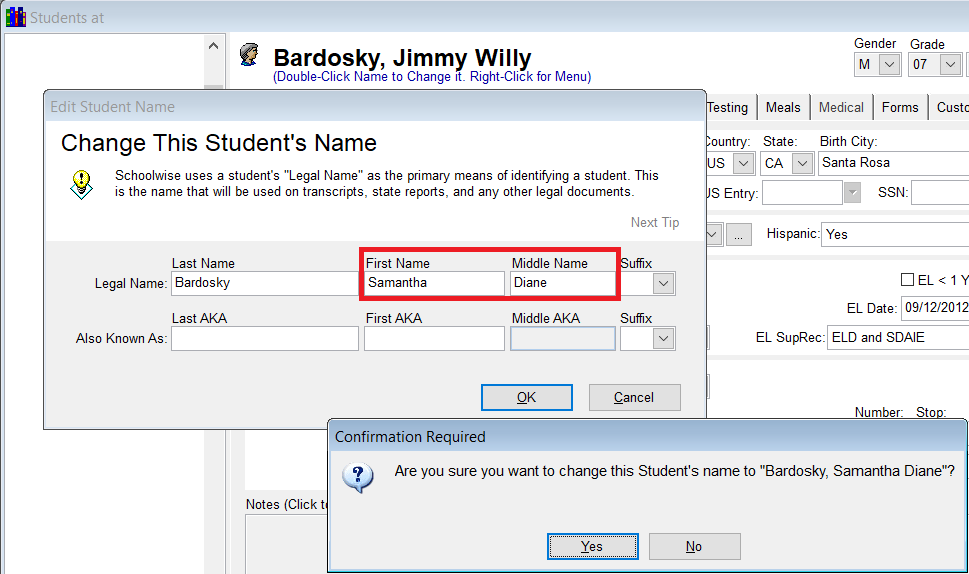
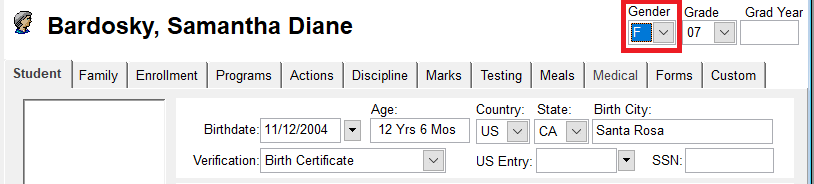
2 - With the Students form still open, enable edit mode and change the gender to the desired value.
| |
3 - Select the Programs Tab and click on the Legal Birth Data form. Enter the legal birth information as shown on the student's birth certificate (or other legal document). If this program is not available for your district, please contact James@SchoolWise.com | In the rare occasions that the Last Name also needs to be something other than the legal last name, enter the 'Last Name, First Name' in the First Name field. For example: First Name: Bardosky, Jimmy Middle Name: Willy Gender: Male |
SchoolWise rosters and reports use the 'Legal Name' as entered on the Students form main page (not the 'Legal Birth Data'). A handful of reports have the option to use the student nick name/alias instead. CALPADS exports and transcripts require the actual legal birth data. Students who desire to use a name and gender not consistent with their legal birth name and gender will need to have that information on file.
The 'Legal Birth Data' program requires the permission 'View Student Confidential' (Administrators and Secretaries normally have this permission by default). When data is entered, CALPADS exports will use that information to populate the gender and the legal and preferred student names.